Approving and Submitting a Bill
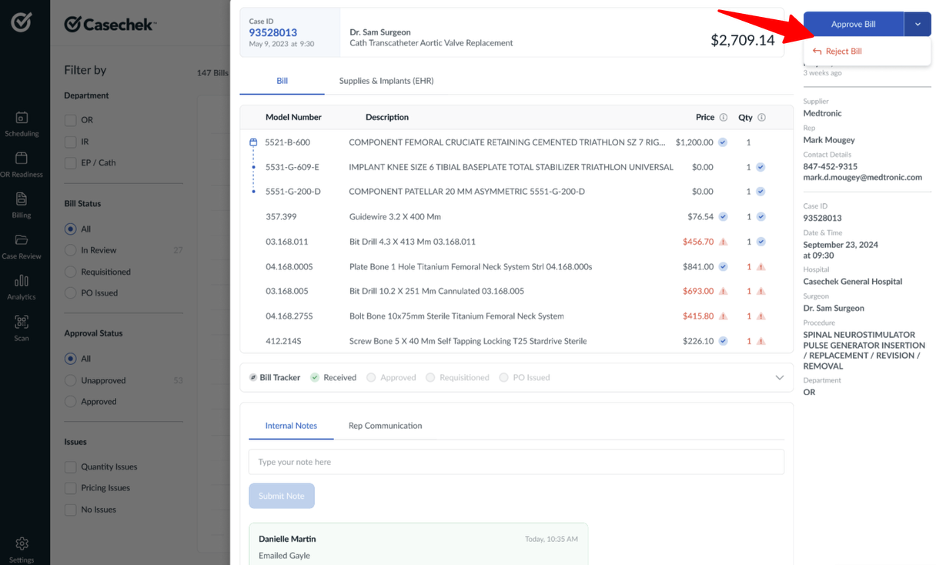
When you’re ready to approve the bill, click on the Approve Bill button in the upper right-hand corner. You will be prompted to confirm the approval.
- You must have the “Approver” user type to approve a bill
- As a Bill Approver, you must first click Approve and then Requisition for every bill you are responsible for
- If another approver has already approved the bill, that’s okay, but you will still need to click Approve yourself before you can Requisition
- If your user type does not allow bill approval, then the Approve Bill button will not appear for you
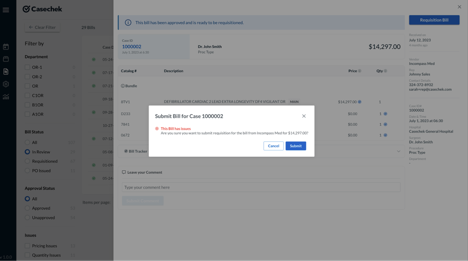
Then click Submit Requisition to send the Bill to the ERP
- You must have the “Requisitioner” user type to submit a requisition.
- If your user type does not allow you to requisition, then the Submit Requisition button will not appear for you.
- If the bill has issues, then you will be alerted prior to submission. You can:
- Override the alert and continue with submission if needed.
- Also add comments to elaborate for team members.
- If the bill has no issues, then you will still be asked to confirm the submission but there will be no alert on the submission confirmation.