
Understanding Case Statuses in Coordination
Each case from your EHR appears as a card in the case list. Each case has a status to indicate whether vendor support has been assigned yet. The status of the case is also reflected in the color, which helps you identify whether action is required.
For Review (Blue)

You can open the case and either:
- Add a vendor request, or
- Mark the case as not requiring vendor support by clicking No Vendor
Vendor Assigned (White)
A white case card means at least one vendor request has been added.
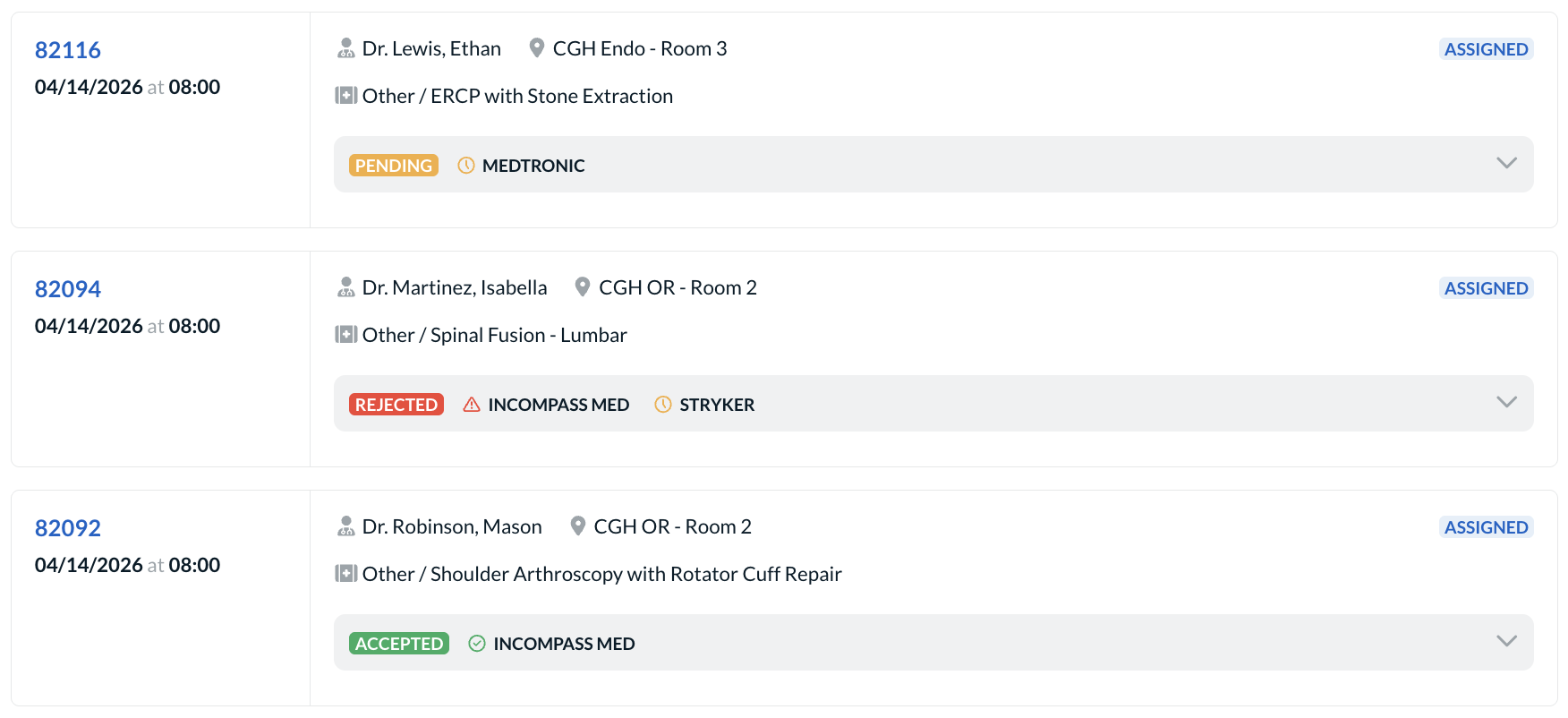
The case card will display the vendors requested, with indicators on whether the vendor has responded yet:
- Accepted (green): Vendor has confirmed support
- Pending (yellow): Vendor has not yet responded
- Rejected (red): Vendor declined the request
If multiple vendor requests exist for the same case, the case displays the most urgent status. For example:
- If one vendor is Accepted and another is Pending, the case displays Pending
- If any vendor is Rejected, the case displays Rejected
No Action Needed (Gray)
A gray case card indicates:
- The case is in the past,
- The case was canceled, or
- The case was marked “No Vendor Needed”
Gray cases are informational and do not require action.