
Wrong Item Added in Patient Record or Item Does Not Exist in EHR
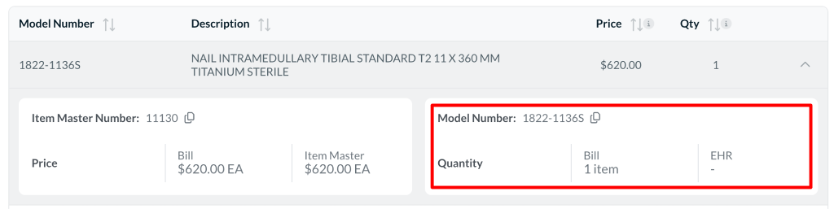
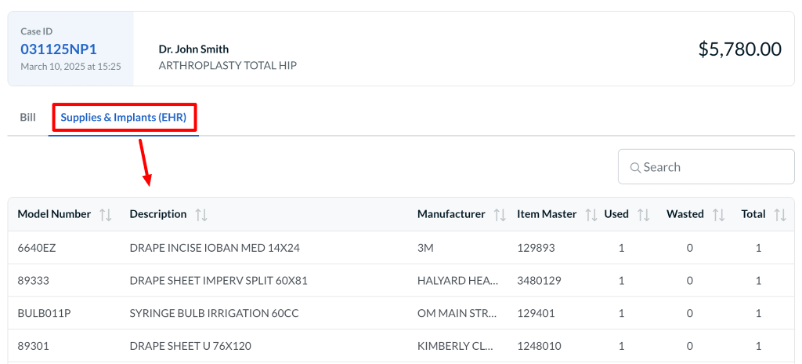
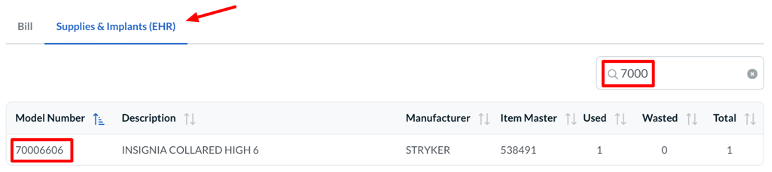
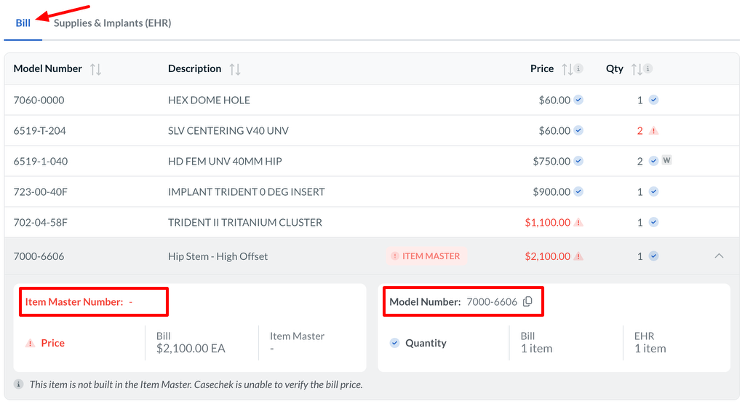
If a Bill Item has a blank or null EHR Quantity, this indicates that Casechek could not find a match in the patient record for this item. Casechek uses the ERP Item Number and the Model Number to tie vendor Bill Items to the EHR patient record. If a Bill Item is missing in the EHR patient record, this can be resolved by reaching out to the vendor and clinical to determine which one is correct.
Solution
- If you have determined that a wrong item was entered or an item was missed in the EHR patient record and the Bill Item is documented correctly, follow these steps to correct the issue:
- If a One-Time Use Item is on the EHR patient record but contains the incorrect model number, Clinical will need to:😀
- Delete that item from the EHR patient inventory record
- Re-add a One-Time Use item with the correct model number and quantity
- Re-Verify the log or post an addendum to the EHR patient record (this will push the change to Casechek Bill Review)
- Note: Changing the model number on an existing item in the inventory record will not trigger a change in Casechek Bill Review
- If an item does not exist in the EHR patient record, Clinical will need to:
- Add the item to the EHR patient record
- Re-Verify the log or Post an addendum to the EHR patient record (this will push the change to Casechek Bill Review)
- If you have determined that the vendor selected the incorrect item to add to the Bill, and the correct item is documented in the EHR then:
- Reject the Bill with a clear reason for rejection – including all necessary item details and correct quantity
- The vendor rep will then correct the item and quantity
- The vendor rep will re-submit the bill to trigger an update in Casechek Bill Review