
Searching For, Filtering and Sorting Bills
Search for bills by entering any of the following information into the search bar:
- Case ID (i.e. 2134567)
- Procedure Type (i.e. TOTAL HIP ARTHROPLASTY)
- Surgeon (i.e. John Smith)
- Vendor Company (i.e. Med Device Co.)
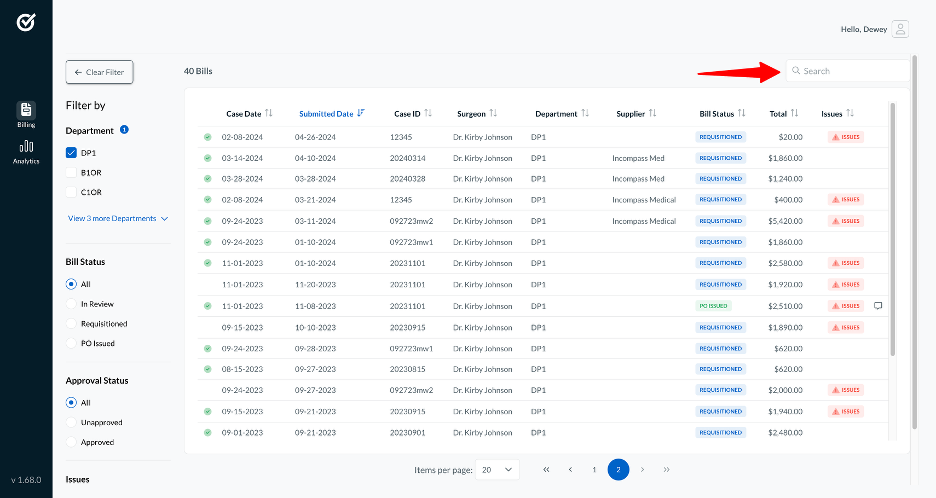
You can filter Bills by any of the following categories to create your own work queue:
- Department
- Bill Status
- Submitted: The supplier has submitted the bill, and Casechek is waiting for the first EHR inventory log data
- Review: The bill and inventory log are available for review
- Requisitioned: The bill has been approved, and the requisition has been sent to the hospital’s ERP
- Purchase Order Issued: A purchase order has been issued to the supplier
- Approval Status
- Approved: At least one approval has been made on the bill
- Unapproved: No approvals have been made on the bill
- Issue Type (Quantity, Price, or No Issues)
You can sort the Bills table by selecting any column header. Select the header once to sort the bills in ascending order, or select it again to sort them in descending order.