
Reviewing a Bill
To view a bill, simply click on it within the list of bills. The Bill View displays bill details, item-level information, bill status, comments, supplier information, and case information in one place. Use it to review the bill and identify any issues that require attention.
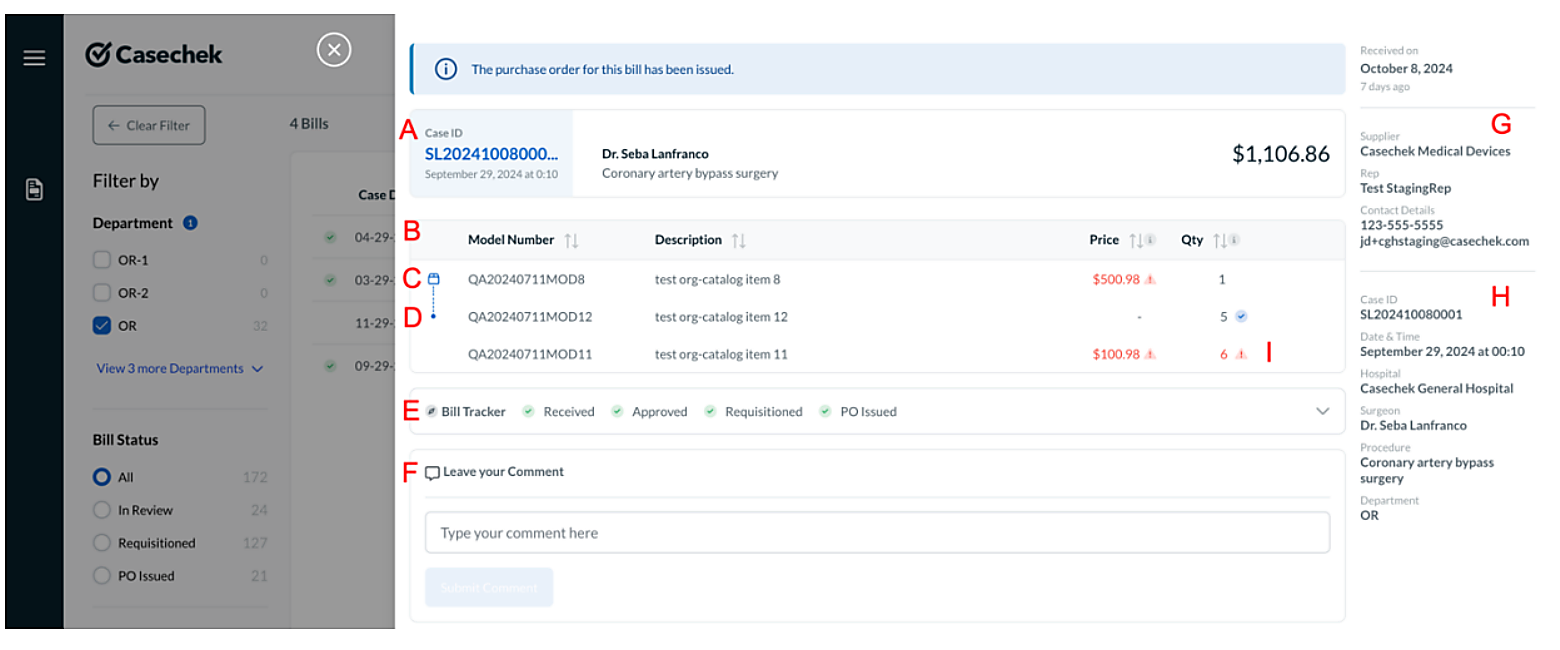
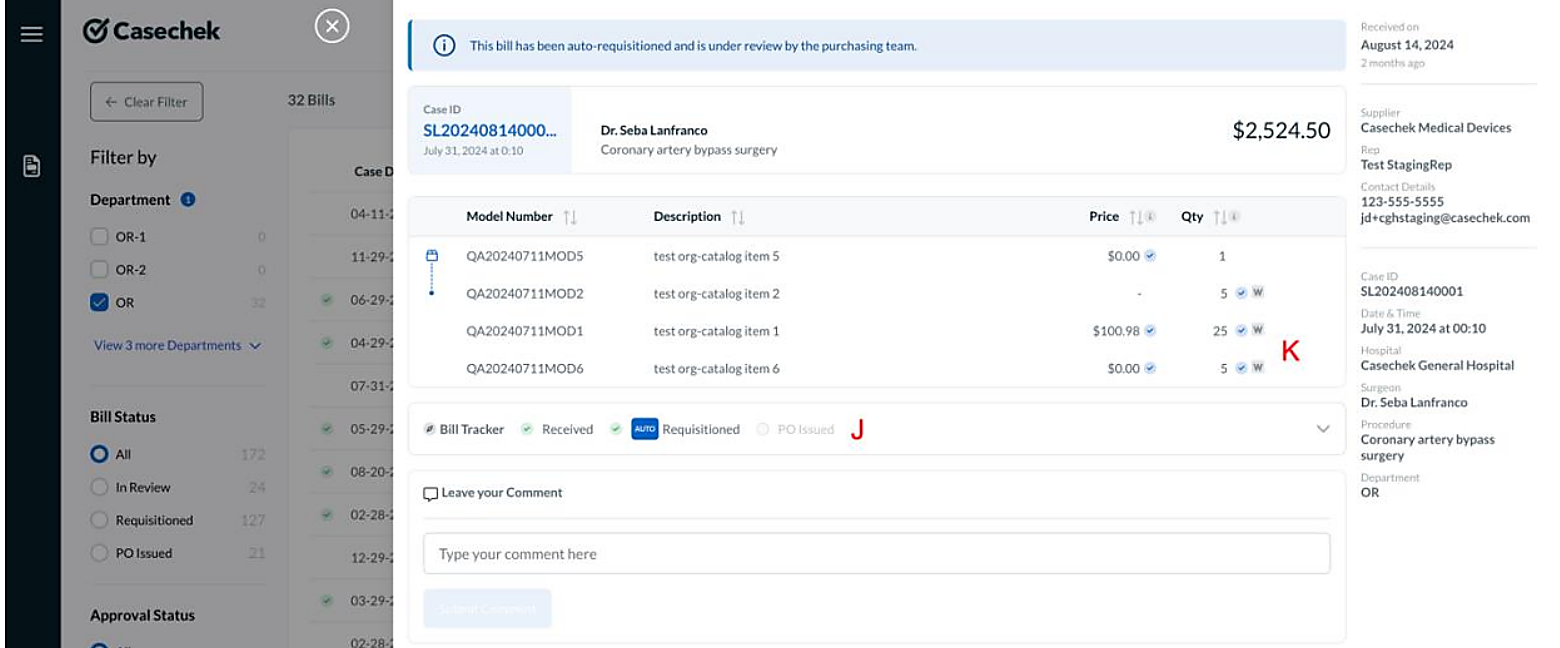
Bill View sections
A. Bill Overview
Displays the Case ID, surgeon, procedure, bill total, and bill status message.
B. Bill Details
Lists each item's model number, description, price, and quantity.
E. Bill Tracker
Shows the bill's progress through the available lifecycle stages, including Received, Approved, Requisitioned, and PO Issued.
F. Comment on this Bill
Use this field to add a comment to the bill.
G. Supplier Information
Displays the supplier, representative, and contact details.
H. Case Information
Displays the Case ID, date and time, hospital, surgeon, procedure, and department.
Additional Bill View indicators
C. Bundle Indicator
Identifies a line as a bundle.
D. Bundle Items
Items connected by a blue line belong to the bundle listed above them.
I. Issue Flags
Prices and quantities shown in red indicate an issue.
J. Auto-Requisitioned
“Auto” appears in the Bill Tracker when Casechek's NoTouch PO automated the Requisitioned stage.
K. Wasted Items
A “W” indicates that one or more items were wasted. Expand the line to view more detail.